Welcome to the EGGhead Forum - a great place to visit and packed with tips and EGGspert advice! You can also join the conversation and get more information and amazing kamado recipes by following Big Green Egg to Experience our World of Flavor™ at:
Want to see how the EGG is made? Click to Watch
Facebook | Twitter | Instagram | Pinterest | Youtube | Vimeo
Share your photos by tagging us and using the hashtag #BigGreenEgg.
Share your photos by tagging us and using the hashtag #BigGreenEgg.
Want to see how the EGG is made? Click to Watch
Egg'n Wisconsin Style

BBQ-Gator
Posts: 35
Another beautiful day in Northern Wisconsin. 2F and 15 inches of snow today! What better time to go and grill some venison steaks on the egg. My first post with photos. Hopefully it works. Sorry no pics of the steaks.

Looks like an Egg-sicle.


Looks like an Egg-sicle.
Comments
-
Wally, I can't see your pics.
MollyMolly
Colorado Springs
"Loney Queen"
"Respect your fellow human being, treat them fairly, disagree with them honestly, enjoy their friendship, explore your thoughts about one another candidly, work together for a common goal and help one another achieve it."
Bill Bradley; American hall of fame basketball player, Rhodes scholar, former U.S. Senator from New Jersey
LBGE, MBGE, SBGE , MiniBGE and a Mini Mini BGE -
Sorry, no pics here
-
Maybe this will help.
Notes about Photo Posting in the New Greeneggers Forum
Notes compiled by DynaGreaseball, updated 19 Mar 08
Your Digital Camera There is a setup function on most digital cameras for selecting picture size. The choices of size are limited by the amount of memory capacity (mega pixels) that the camera contains. The best setting for your camera should be determined by how you intend to use it most often. If you ever plan to have enlargements (say 8” x 10” prints) made, you should always choose the largest setting that your camera allows. If you only intend to send photos in e-mails across the internet to friends and family, then a smaller setting of 640 x 480 is about all that is required. The problem with choosing a small setting is that once you’ve selected it, all your pictures will be produced in that smaller size (until the setting is changed). In the event that you happen to take that “perfect picture” of a favorite grandchild with your camera having been set to the smaller size, the photos can’t be used to make very large prints without being fuzzy (pixilated). Some people set their cameras to the largest setting available, just in case; and then they reduce the size of each photo after it has been uploaded to their computer. Photobucket’s photo re-sizer will accomplish this task for us (more about that below). Some use their own photo editing software to accomplish re-sizing. Many new cameras come bundled with editing software.
Posting Pictures in the Forum The new forum has glitches and inconsistencies. It allows photos of up to certain sizes in some views, and up to different sizes in other views. Once uploaded to the forum, the maximum width of a posted photo will not exceed 1024 pixels (1024 x 768 is a popular setting in most digital cameras), but such large photos can only be seen in the forum, whenever a user’s display is not set to be viewed in the Wide View mode. To ensure that everyone using the forum can see your posted photos—no matter which display they’re using—pictures should be no larger than 800 pixels wide. (800 x 600 is the largest size picture that may be seen in the Wide View mode). It’s new software, and it’s a little squirrelly, but this inconsistency will probably be corrected in the future.
Using Photobucket’s Edit/Re-Sizing Tool Once you’ve logged into Photobucket.com, and your album has been selected, there are tools found above each photo that are available to you—one of which is an editing option. It is a drop down window giving specific re-sizing options. If the selected picture is 1024 x 768, then the next choice for a smaller size will be 800 x 600. Just click on that option and the photo will be re-sized and saved automatically. Note. Once a photo has been reduced in size, it cannot be made larger using the Photobucket Editing Tool.
Photobucket also provides a tool that allows us to set the maximum size of all photos that will be uploaded into an album. Found at the top of the upload section where the three browser fields are located, you may select the “Max Image Size (Option)” and customize it as a preference for your account.
Copying a Photo From Photobucket to the Forum Text Editor There are four options listed below each photo in your album. Each one has a specific purpose. The bottom choice (IMG Code – Forums & Bulletin Boards) is the only one that is useful to most of us in the forum. It is simply a copy function that works by left clicking the data inside the option. This will copy the photo to your clipboard with all the necessary code needed to paste it into the forum’s text editor. Once the picture has been copied, it is not necessary to use any of the html coding options likefound above the forum’s text editor. To paste the contents of your clipboard, drop the cursor at the location in your text where you wish the photo to appear, and right click your mouse. Then choose paste.
The Preview option at the bottom of the text editor will not show your picture(s). This doesn’t mean it was incorrectly posted. Only the text (and some graphics, like smiley faces) and the link to the picture will appear inside the preview window.
Posting Profile Pictures It is not necessary to use a third party photo host to handle a photo that will be used for your profile picture. You may store this photo on the hard drive of your PC, and “browse” directly to it from within your profile page. Once you’re logged in, and have accessed the forum’s main page, scroll down to where you’ll find the green “Profile” button. Click on it in order to access your profile page. Under the silhouetted place-holder, choose Update Your Image. Then use the browser to find the photo on your hard drive and select it from there. This photo must not be any larger than 200 x 500. A photo editor can be used to obtain a picture that fits this field. Note. Once you’ve completed posting your profile picture, it will not be seen right away. Profile photos are first reviewed to make sure they are appropriate.
Posting an Avatar It is not necessary to use a third party photo host to handle a graphic file which will be used for an avatar. There are, however, some hitches to this process—all of which must be satisfied before they can be successfully posted.
· First, the image may only be one of three file types: .JPG .GIF or .PNG
· Second, the image may not be any larger than 70 x 70 pixels. (If your image is not square, try making the longest side 70 pixels and let the shorter side fall to whatever it will be.
· Third, the file name must only contain alphanumeric characters (only letters and/or numbers). No special characters, such as slashes, dashes, underlines or asterisks may be used. Animated avatars will work, but it may take special software to resize it and preserve the integrity of the animation.
After logging into the forum, you must first be viewing any post. Then, the location on the forum for posting an avatar is found by clicking in the header which looks like this: -
Thanks all. I'm trying to fix now. I'll try a repost soon.
-
Let's try again. I've reduced he picture size. Let's see if this works. I apologize for my lack of knowledge here. I've been monitoring this forum for awhile, but just now starting to post. This is my first attempt with pictures. I'll try one just to see if it works.
-
Looks like it is still not working. I've reduced the size to 800X600. I use the IMG tag on both side of the URL. Not sure if it matters, but I'm on a MAC,
Any suggestions? -
Morning Wally:
Is this the first pic?
Have a GREAT day!
Jay
Brandon, FL
-
-
-
Jay,
Yes on all 3. What did you do to get them to display??
Thanks, -
Morning Wally:
Under each pic in Photobucket there are four "options". Just click on the bottom one (the IMG code) and then past that directly in the body of your post. Nothing else is needed. HTHHave a GREAT day!
Jay
Brandon, FL
-
Jay,
Thanks for your help. One problem, I see the IMG option at the bottom, when I click it is says copied. I then go to my post and "paste". Problem is that it is not the image number that I'm trying to paste. Also, not sure if they should be there, but there are no "IMG" tags around the URL in the post.
Don't forget I'm using a MAC. Not sure if that is an issue but it seems like things are not working like they should.
Sorry for being such a dork. I didn't think it would be this difficult.
Thanks again. -
Don't trust the "copied"....right click, copy and paste.LBGE Katy (Houston) TX
-
Gunnar,
Thanks for the tip. Unfortunately, a MAC does not have a 2-button mouse. I may try posting from my PC next time. But for most of my surfing, I use a MAC.
Thanks, -
This is a test. I may have found out how to dot his with a MAC. This is only a test :P

-
-
Yes!!!! Thanks to everyone for their help. Evidently, I have to go through some additional steps on a MAC for cut/paste, but it appears to finally have worked.
-
Yes you do have one more simple step on a mac. When photobucket says "copied" it is not actually "copied." You need to actually click on it and then command/apple C to copy.
-
for some reason I don't have to on mine. It copies on the click
-
FlaPoolman wrote:for some reason I don't have to on mine. It copies on the click
Me either. One click and then command-v to paste for me. To verify....
test: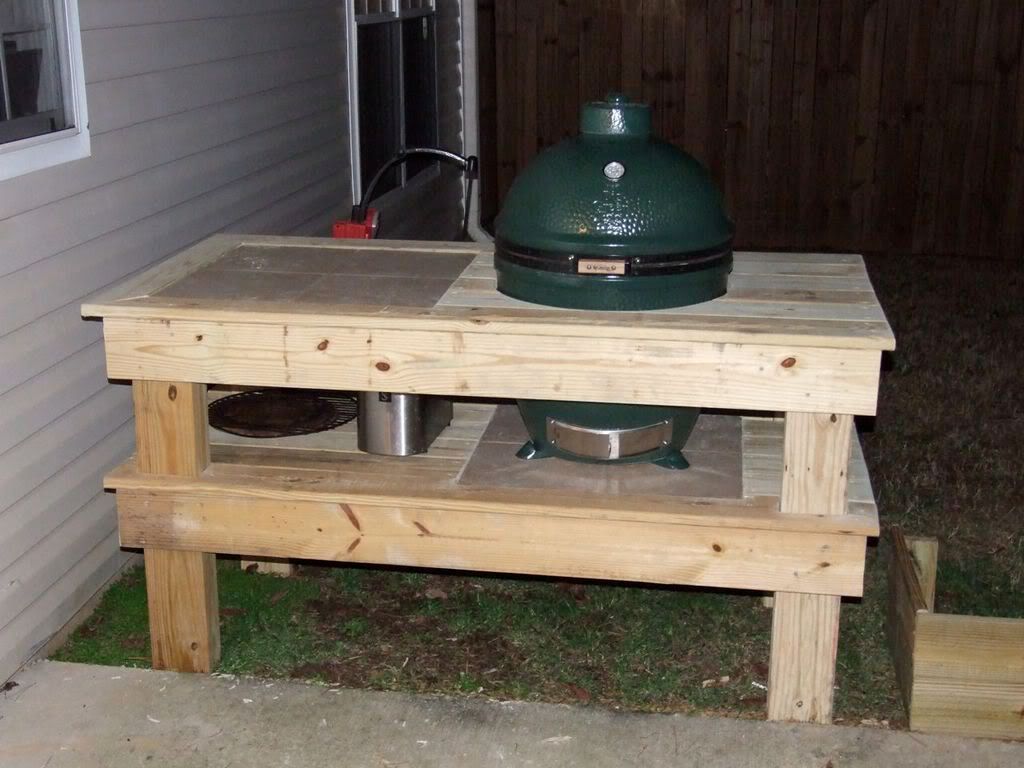
yep, worked perfectly. -
That's what was throwing me off. I clicked it said copied, but nothing pasted. I then clicked, command apple/C to copy, and it kept pasting a different picture number. I then finally I clicked, Did Edit/Copy/Paste from the menu, and things finally worked.
One of those mysteries of the world...
Thanks to everyone for your suggestions. Hopefully my next post with pictures will work without a hitch.


 found above the forum’s text editor. To paste the contents of your clipboard, drop the cursor at the location in your text where you wish the photo to appear, and right click your mouse. Then choose paste.


Categories
- All Categories
- 184K EggHead Forum
- 15.8K Forum List
- 459 EGGtoberfest
- 1.9K Forum Feedback
- 10.4K Off Topic
- 2.2K EGG Table Forum
- 1 Rules & Disclaimer
- 9K Cookbook
- 13 Valentines Day
- 93 Holiday Recipes
- 224 Appetizers
- 520 Baking
- 2.5K Beef
- 88 Desserts
- 167 Lamb
- 2.4K Pork
- 1.5K Poultry
- 33 Salads and Dressings
- 324 Sauces, Rubs, Marinades
- 548 Seafood
- 175 Sides
- 122 Soups, Stews, Chilis
- 44 Vegetarian
- 102 Vegetables
- 313 Health
- 292 Weight Loss Forum